ship it
you built something. now let's put it on the internet so anyone with the link can see it.
we're going to use GitHub — the same place developers use to store and share code. it's free, and it can host your website too. don't worry — the AI will do most of the heavy lifting.
create a github account
GitHub is where developers store their code online. think of it like Google Drive, but for code. you need an account so we can upload your project there.
go to github.com/signup and create a free account with your email.
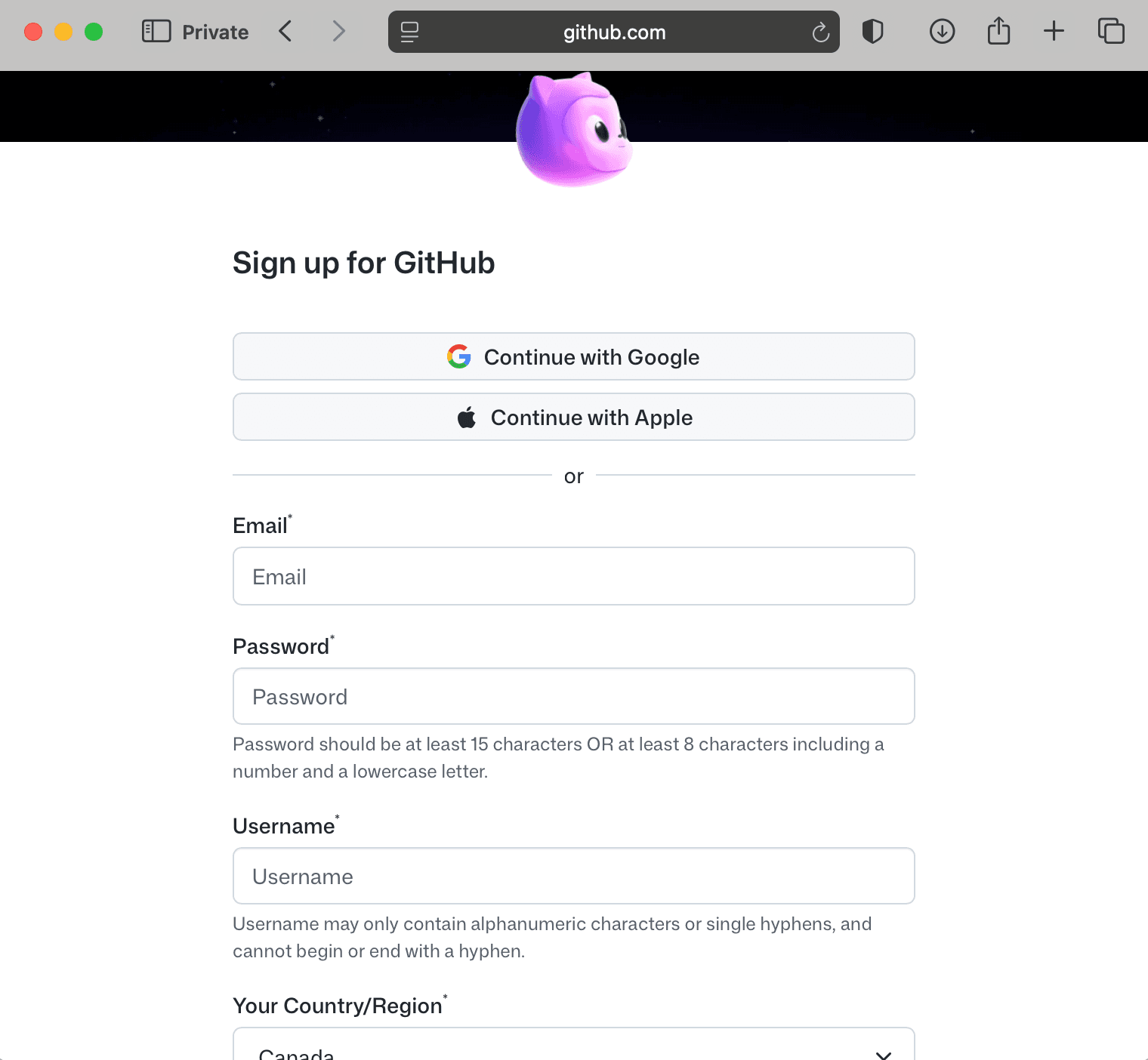
the GitHub signup page — just enter your email and follow the steps
already have a GitHub account? skip to the next step.
get a personal access token
a personal access token is like a special password that lets your terminal talk to GitHub. you only need to do this once.
GitHub has two types of tokens. we want the classic one — it's simpler. click this link to go straight there:
github.com/settings/tokens/new (you might need to sign in first)
heads up: if GitHub asks you to choose between “Fine-grained” and “Classic”, pick classic. the link above should take you straight to classic, but just in case.
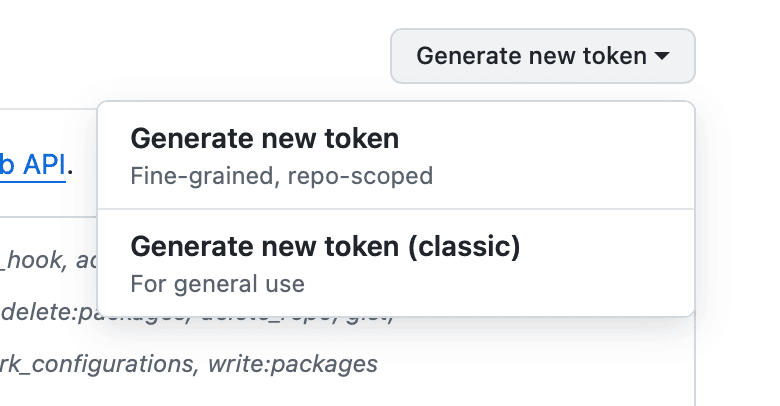
if you see this dropdown, pick 'Generate new token (classic)'
you only need to fill in three things:
- 1.“Note” — type my-first-app (this is just a label so you remember what it's for)
- 2.“Expiration” — pick 90 days from the dropdown
- 3.“repo” — check that one checkbox (it's the first one in the list). ignore everything else.
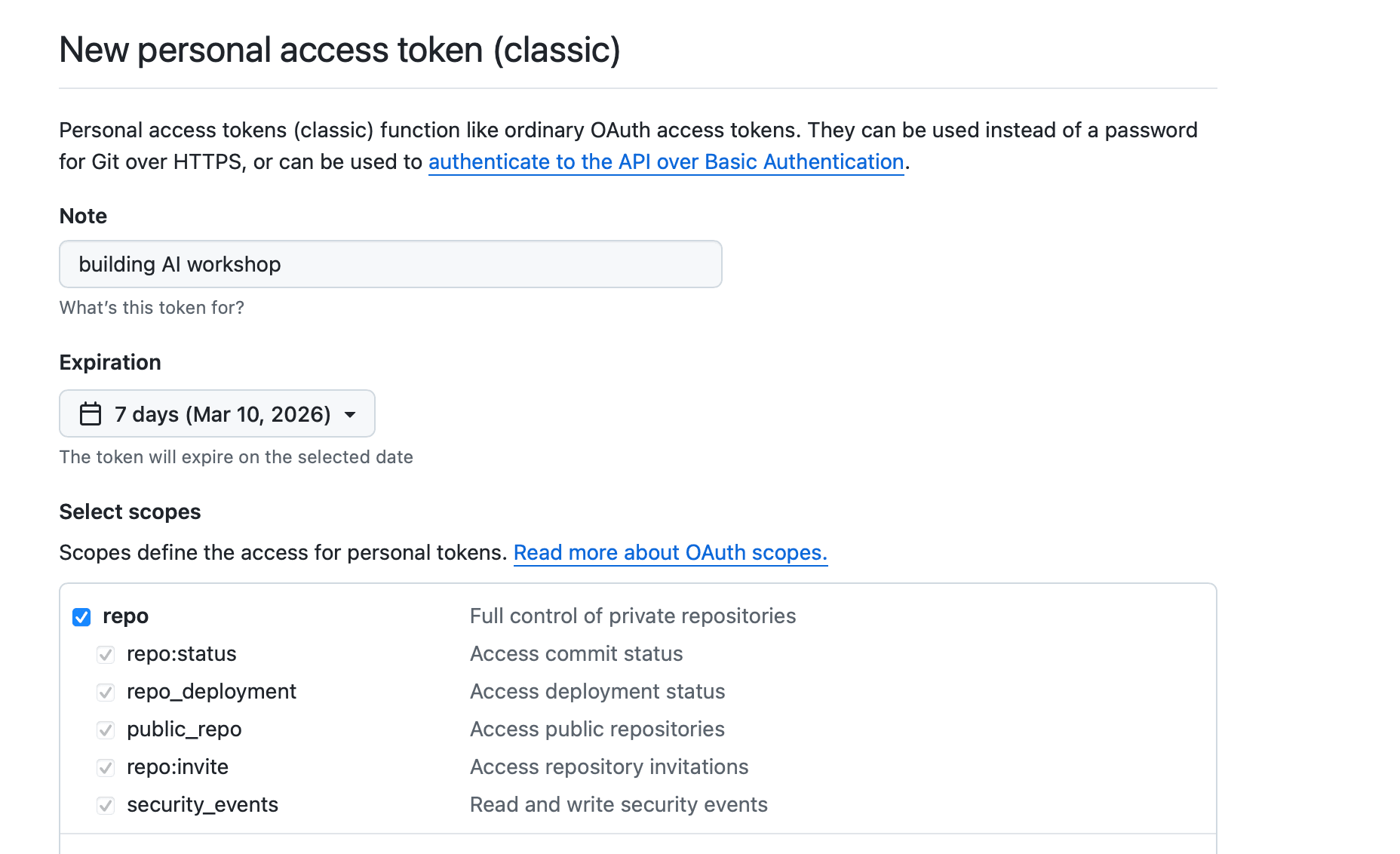
fill in the Note, pick an Expiration, and check the repo checkbox
then scroll all the way down and click the green “Generate token” button.
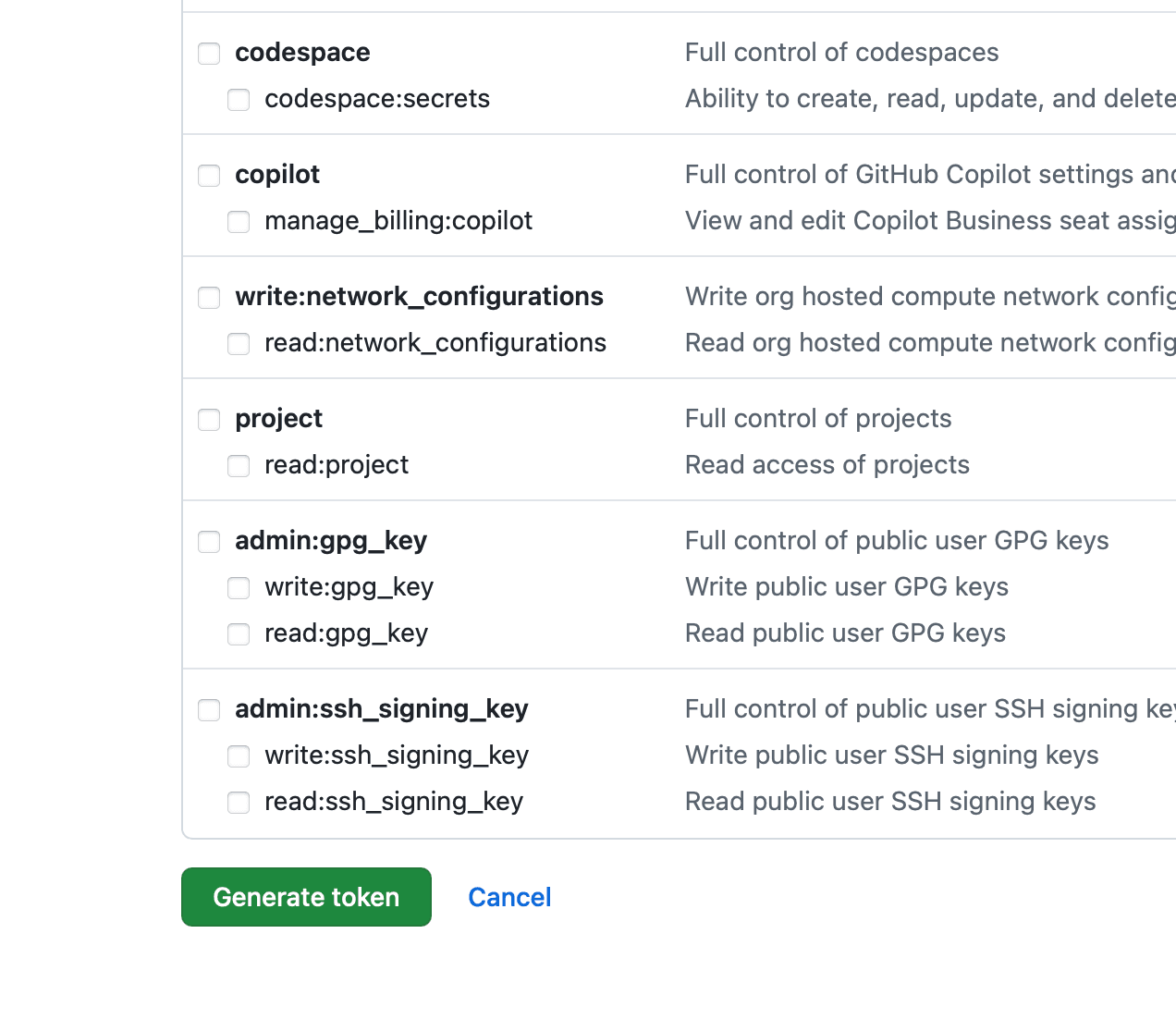
scroll down past everything else and click Generate token
you'll see your token — it starts with ghp_. this is the only time you'll ever see it.
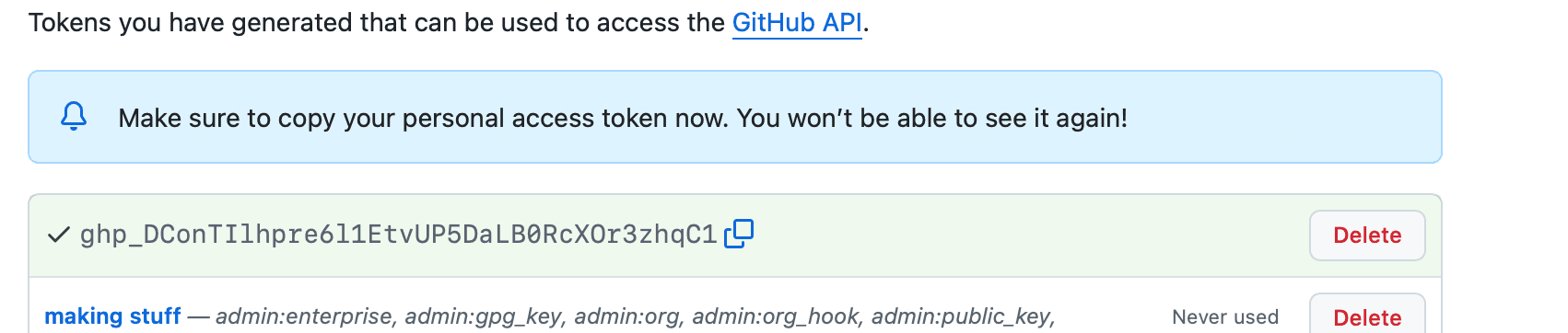
your token appears here — click the copy icon next to it
copy it right now. click the little copy icon next to the token, then paste it somewhere safe — a notes app, a text file, whatever. you won't be able to see it again after you leave this page.
this token is like a password. don't share it with anyone and don't post it publicly. you'll paste it into your terminal in the next step.
push your code to github
now let's upload your code to GitHub. first you need to create a repo (short for repository — it's just a folder on GitHub that holds your project).
create a repo on github
go to github.com/new to create a new repo.
- 1.for “Repository name”, type my-first-app
- 2.make sure “Public” is selected (not Private)
- 3.check “Add a README file”
- 4.click the green “Create repository” button at the bottom
why public? GitHub Pages (the free hosting we'll use later) only works with public repos on the free plan. don't worry — this is normal for personal projects.
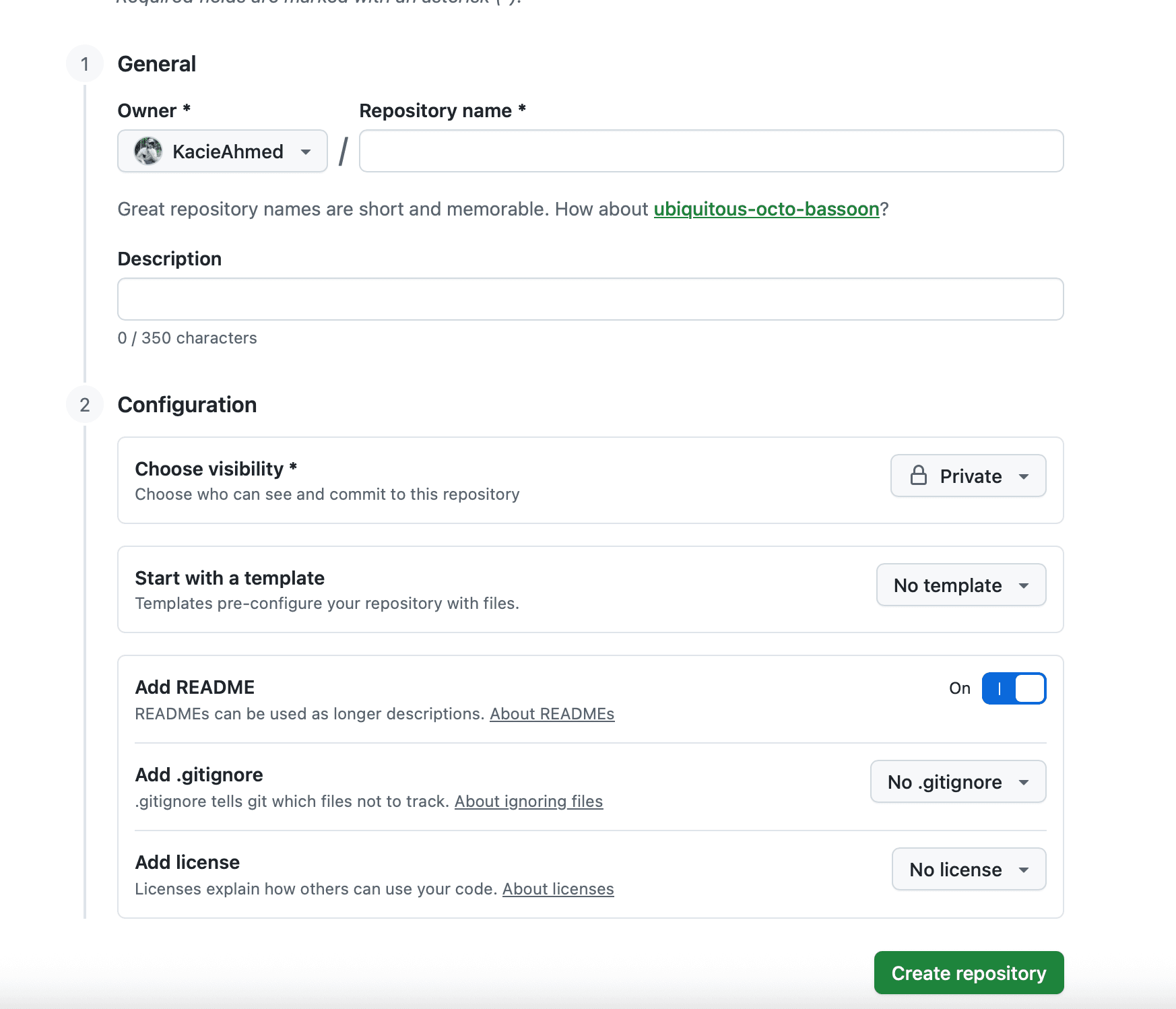
set it to Public, check Add a README, then click Create repository
you'll land on a page with setup instructions. you need the repo URL — it'll look like:
https://github.com/yourusername/my-first-app.gitcopy that URL. you'll give it to the AI in a second.
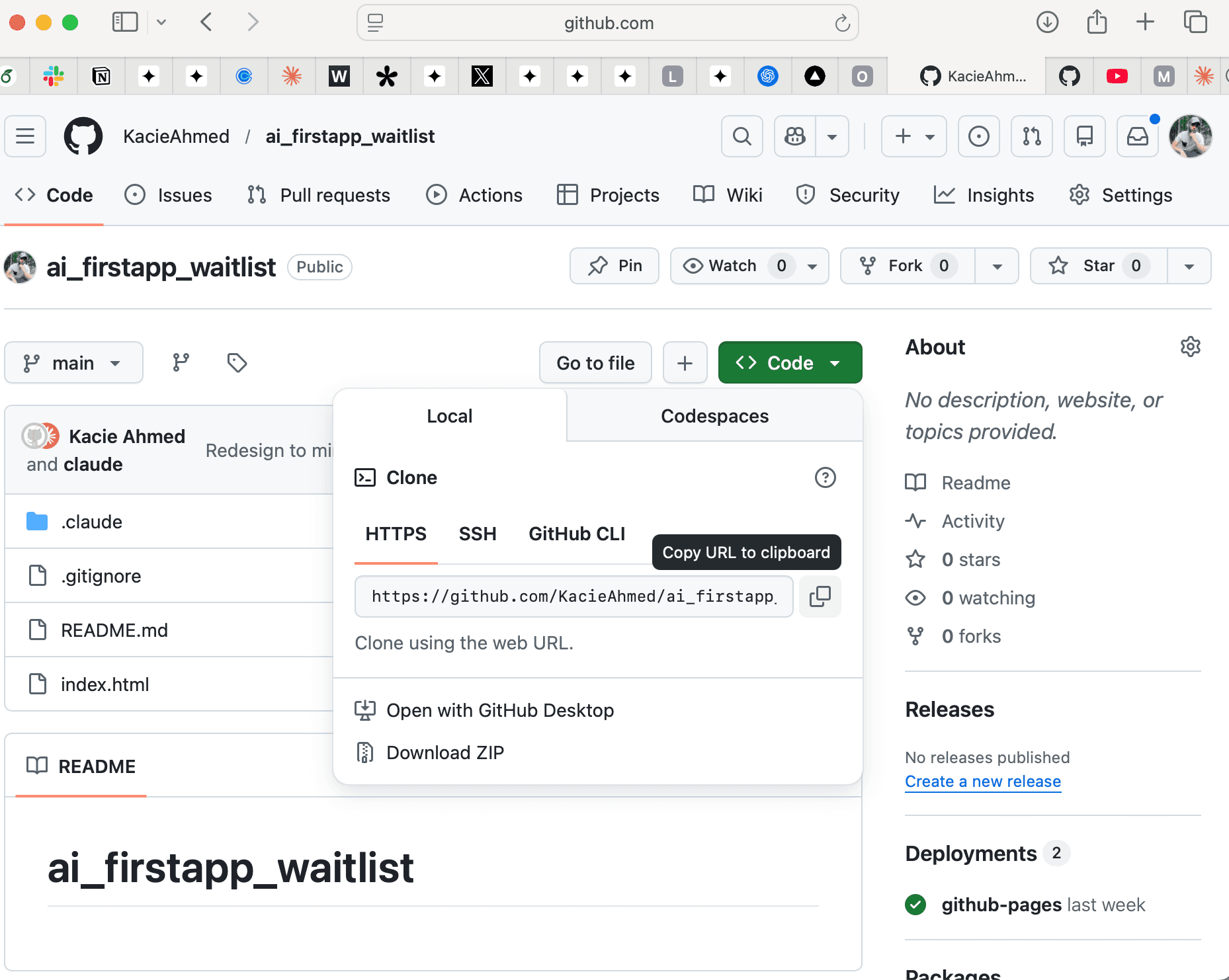
copy the repo URL — you'll find it on the page after creating the repo
push your code
go back to your terminal (where your AI tool is running) and tell it to push your code to that repo:
push my code to https://github.com/yourusername/my-first-app.git(replace the URL with the one you copied from GitHub)
the AI will run some commands. at some point it'll ask you to authenticate with GitHub. when it does:
- •for username — type your GitHub username
- •for password — paste your personal access token (not your actual GitHub password)
when it's done, refresh your repo page on GitHub. you should see all your files there.
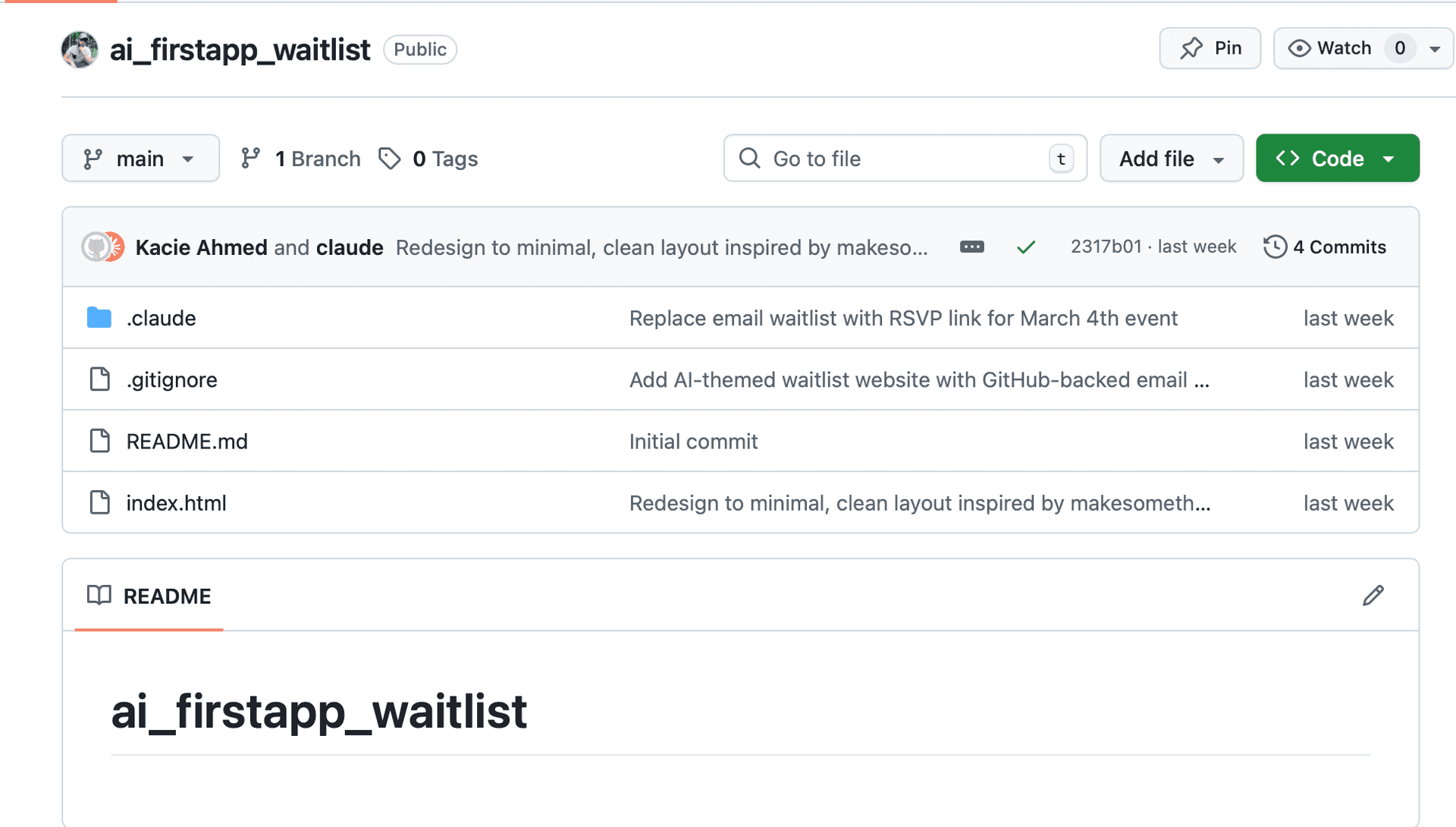
your code on GitHub — if you see your files here, it worked
turn on github pages
your code is on GitHub, but it's not a website yet. GitHub has a free built-in feature called GitHub Pages that turns your repo into a live website. this works great for most first projects — personal sites, landing pages, simple apps built with HTML/CSS/JS.
- 1.open your repo on GitHub (the link from Step 3)
- 2.click “Settings” (the tab near the top)
- 3.in the left sidebar, click “Pages”
- 4.under “Source”, select “Deploy from a branch”, then pick the main branch and / (root) folder, then click “Save”
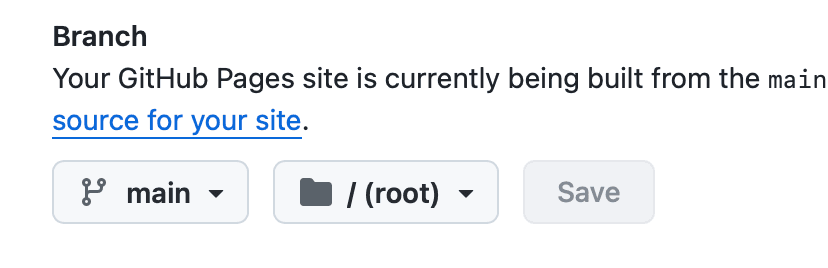
select 'main' branch and '/ (root)' folder, then click Save
after a minute or two, refresh the page. you'll see a banner with your live URL:
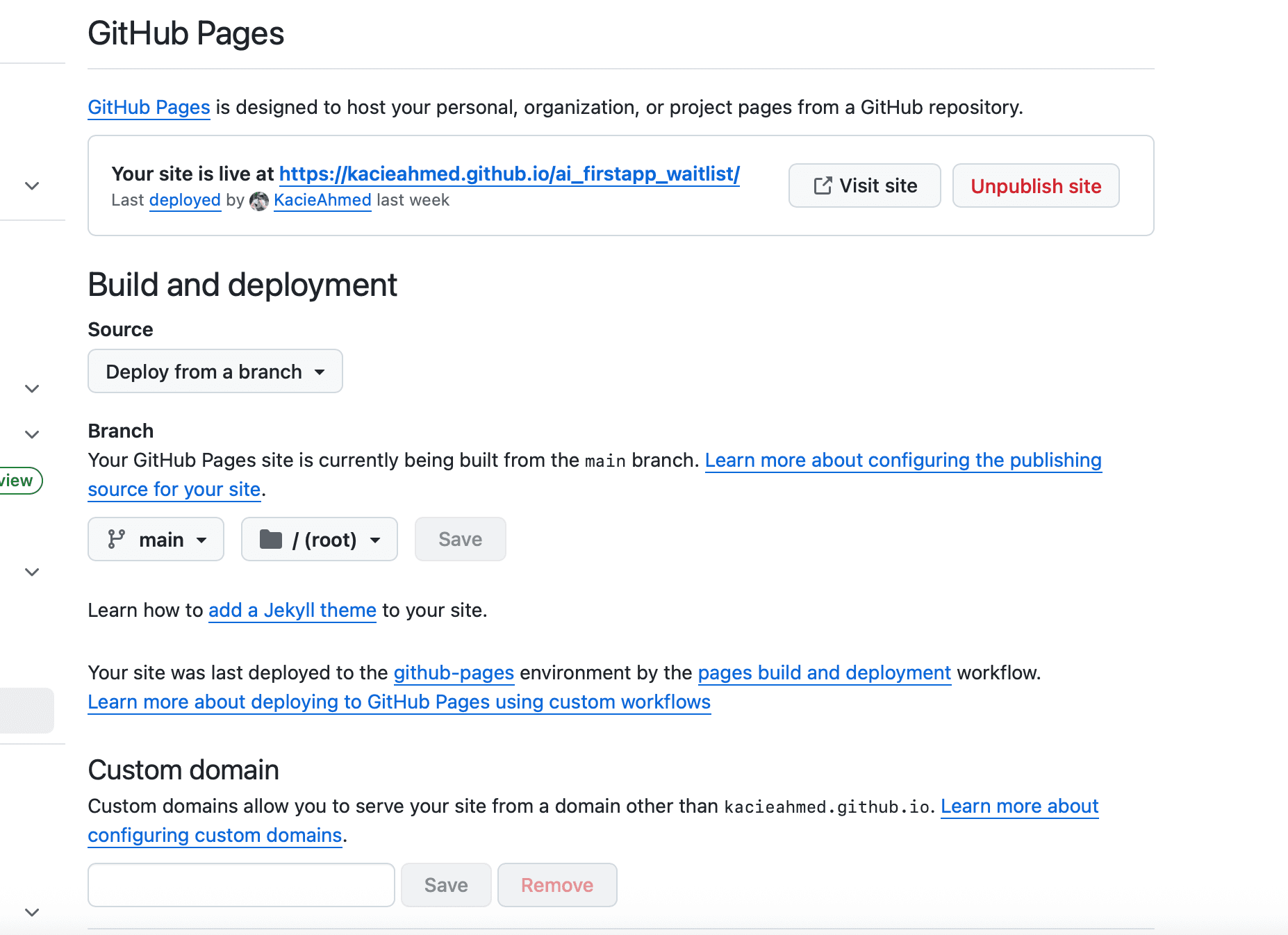
your site is live — the URL appears at the top of the Pages settings
don't see the link? wait a couple minutes and refresh. if it still doesn't work, tell the AI: “I turned on GitHub Pages but my site isn't showing up” — it'll help you debug it.
github pages not working? use vercel instead
GitHub Pages only works for simple, static sites (plain HTML/CSS/JS files). if the AI built your app using a framework like React, Next.js, or Vite, GitHub Pages won't work — your site will show up blank or broken.
not sure if your app is static? if GitHub Pages gave you a blank page or an error, that's a sign you need Vercel.
Vercel is a free service that can handle any type of app. here's how to set it up:
sign up for vercel
go to vercel.com/signup and click “Continue with GitHub”. when it asks for a plan, pick Hobby (it's free).
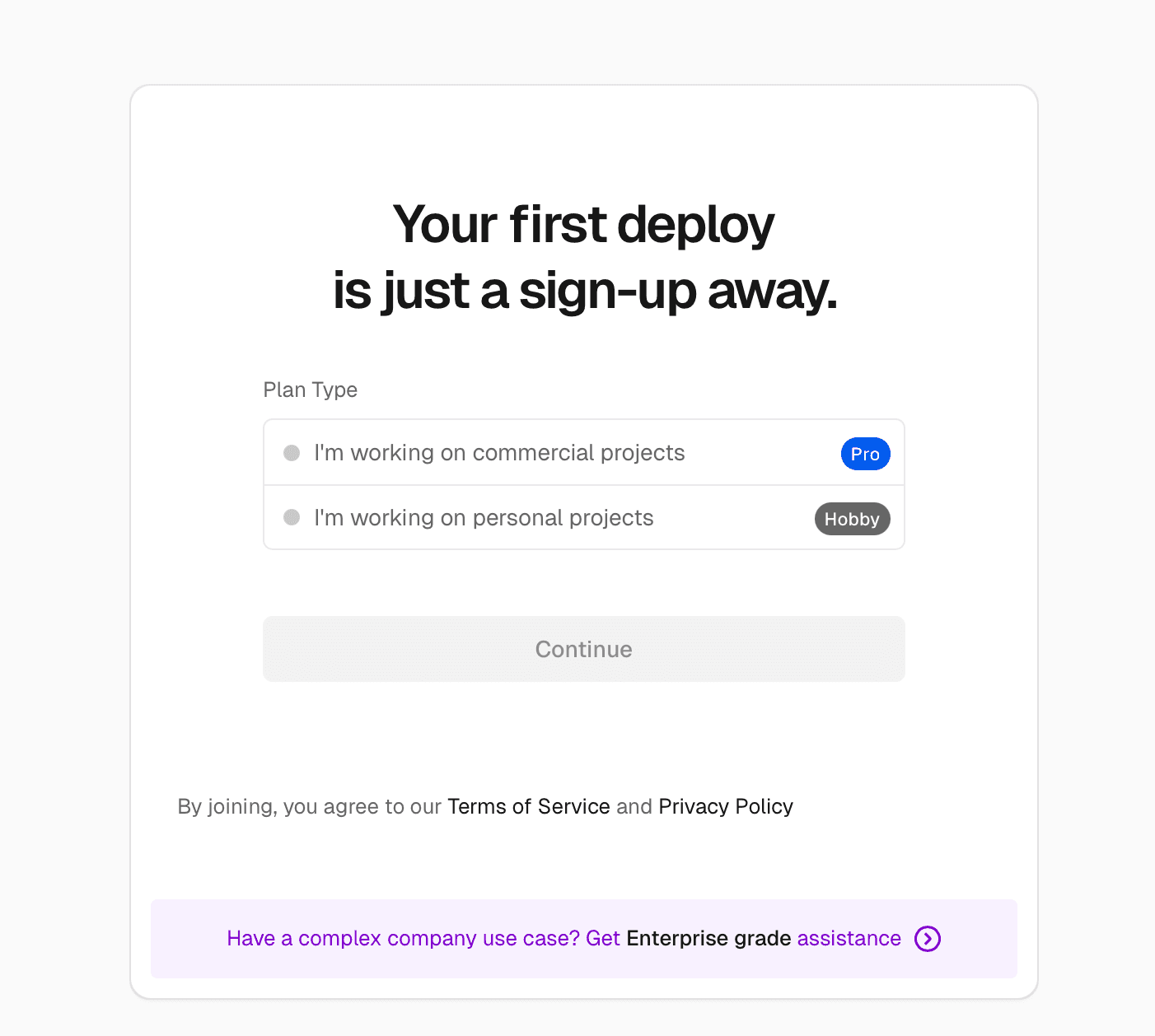
pick 'Hobby' (personal projects) — it's free
import your repo
once you're logged in, click “Add New Project”. you'll see a list of your GitHub repos. find my-first-app and click “Import”.
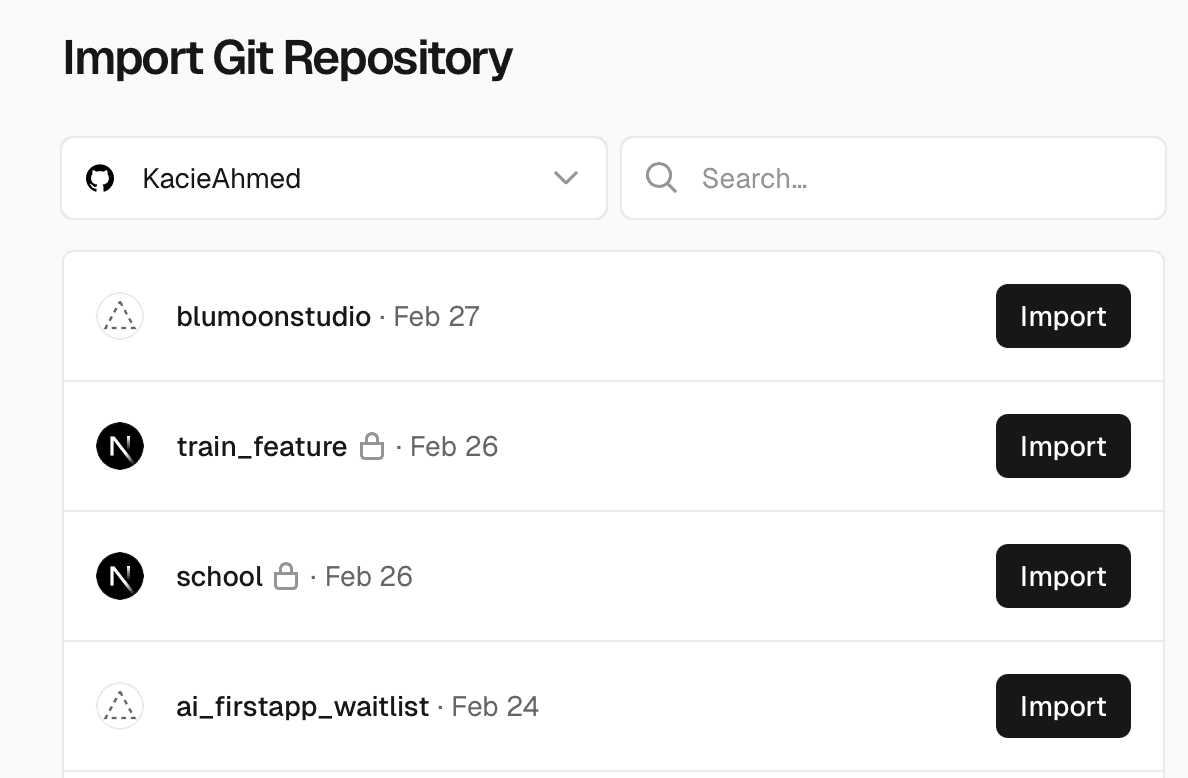
find your repo in the list and click Import
deploy it
on the next screen, don't change any settings — just click the “Deploy” button.
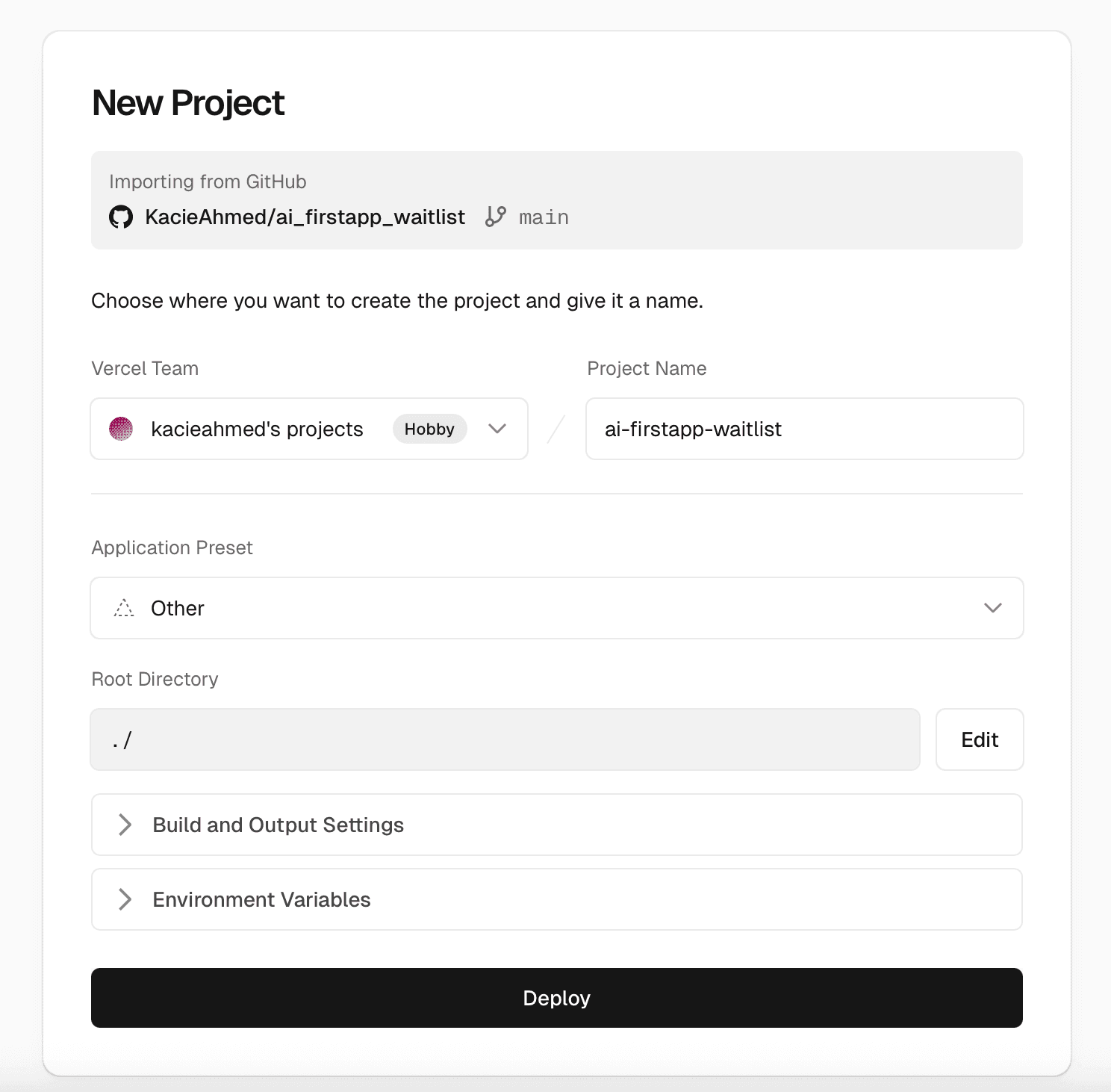
don't change anything — just click Deploy
Vercel will build and deploy your app in about 30-60 seconds. when it's done, you'll get a live URL like my-first-app.vercel.app.
don't see your repo? click “Adjust GitHub App Permissions” on Vercel and grant it access to your repositories. then refresh the page.
grab your link
your live URL will look something like:
- https://yourusername.github.io/my-first-app
- https://my-first-app.vercel.app
depends on whether you used GitHub Pages or Vercel — either way, it works the same.
that's your app. on the real internet. anyone with that link can see it — from their phone, their laptop, anywhere in the world.
click the link. send it to yourself. open it on your phone. it's live.
you just built something from scratch and put it on the internet.
send the link to someone. seriously. text it to a friend. post it on social media. you made this. you described what you wanted and an AI built it. that's pretty wild.
bonus: making updates
whenever you make changes to your app with the AI and want to update the live site, just tell it:
push my latest changes to githubboth GitHub Pages and Vercel automatically pick up the changes and update your site within a couple minutes. no extra steps.
monad school
continue to what's next→